
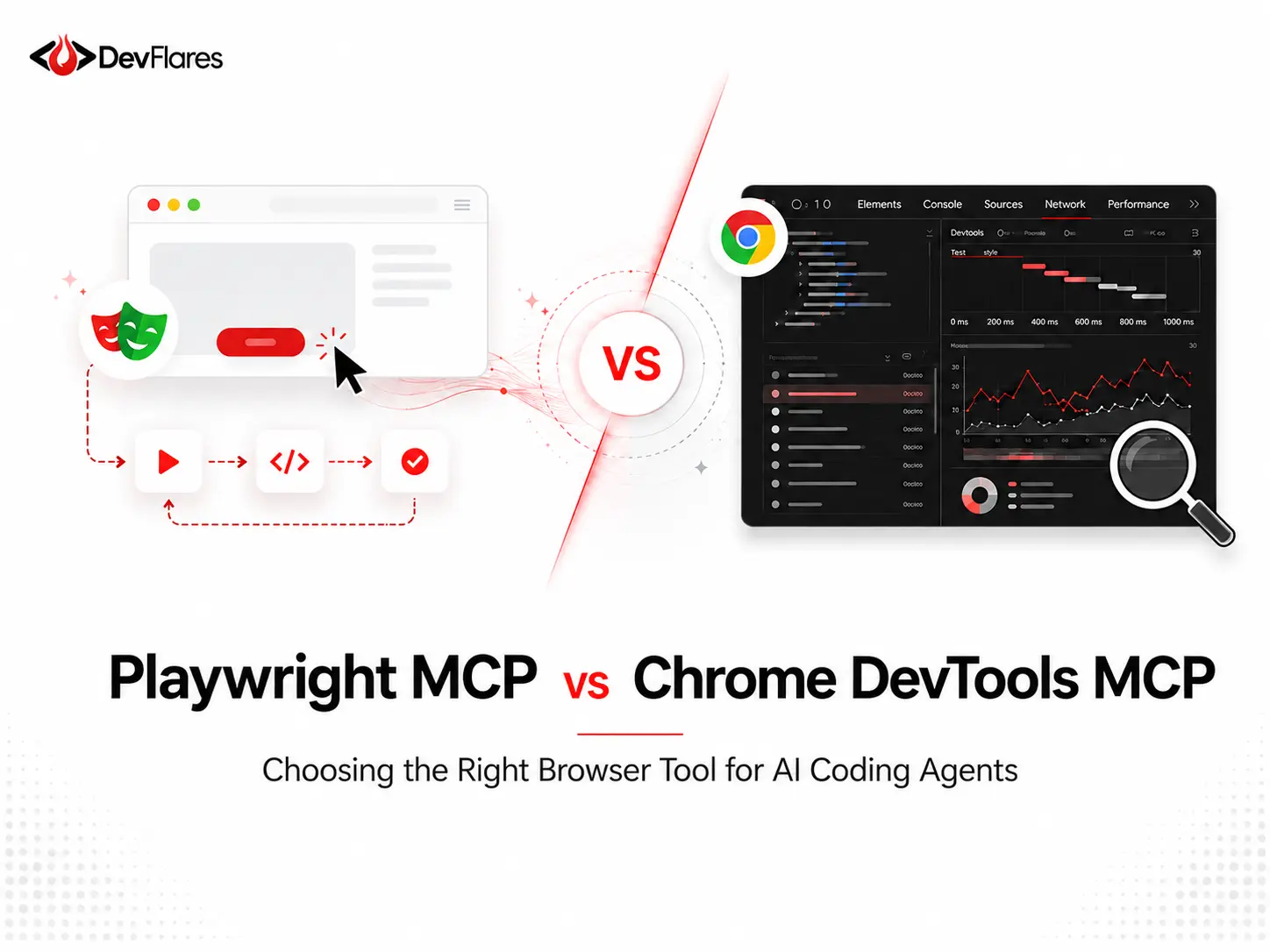
Browser-aware AI agents can now navigate web applications, validate workflows, inspect failed requests, analyze performance traces, and help diagnose runtime issues. The real question is no longer whether your coding agent needs browser access. It is which browser toolchain belongs in each stage of your development workflow.
AI coding assistants used to work primarily with source code, terminal output, and documentation. That was useful, but incomplete. Modern products are experienced inside browsers: React dashboards, Next.js applications, authentication flows, payment pages, internal admin portals, responsive layouts, and SaaS workflows.
A coding agent that can edit code but cannot observe the browser is still missing a major part of the software-development loop. Browser tooling closes that gap. It gives the agent a way to test what it changed, reproduce bugs, inspect runtime behavior, and verify whether a fix actually works.
"The best browser stack is not determined by one winner.
The correct choice depends on whether your agent is automating a workflow, investigating a runtime failure, running performance diagnostics, or trying to preserve its context window while working across a large codebase.
Browser Tools Are Becoming Part of the AI Coding Stack
Model Context Protocol (MCP) servers allow AI agents to use external tools through a standardized interface. Browser-focused MCP servers expose actions such as navigation, form entry, screenshots, DOM inspection, network analysis, and performance tracing.
This changes the conversation developers can have with an agent. Instead of manually describing a bug, you can ask the agent to:
Open the app, sign in, navigate to the dashboard, reproduce the issue, inspect the failed requests, and tell me what is causing the problem.The browser is no longer separate from the coding workspace. It is becoming part of the agent's feedback loop.
The Real Decision: Automation, Debugging, or Token Efficiency?
Playwright MCP and Chrome DevTools MCP are often compared as if they are direct substitutes. That comparison misses the more important architectural decision. A practical browser-agent setup now has four relevant options:
| Tool | Best For | Primary Strength |
|---|---|---|
| Playwright MCP | Exploratory automation and multi-step browser workflows | Structured page interaction with persistent browser context |
| Playwright CLI + Skills | High-throughput coding-agent workflows | Lower context overhead through concise CLI commands |
| Chrome DevTools MCP | Runtime debugging, performance analysis, and browser inspection | Deep access to Chrome DevTools capabilities |
| Chrome DevTools CLI + Skills | Repeatable diagnostics and shell-based automation | Token-efficient scripted access to a targeted subset of tools |
Playwright MCP: Stateful Browser Automation for AI Agents
Playwright MCP is Microsoft's browser-automation MCP server built on Playwright. It allows an AI agent to navigate pages, click elements, fill forms, manage browser state, upload files, execute actions, and validate user journeys without requiring a manually written test script for every exploratory task.
Its most important design choice is the use of structured accessibility snapshots. Instead of relying on a screenshot-first workflow, the agent receives a representation of accessible page elements and references it can use for interaction.
This makes browser interaction more deterministic. The model can work with structured references instead of inferring every action from pixels. Screenshots still matter, but they are complementary: use them for layout verification, canvas content, charts, and bug documentation.
Where Playwright MCP fits best
- • Validating end-to-end workflows such as sign-up, checkout, onboarding, or document upload.
- • Exploring an application before converting the flow into a reusable automated test.
- • Running regression checks after code changes.
- • Completing repetitive browser tasks across multi-step SaaS workflows.
- • Maintaining browser state across iterative agent reasoning loops.
Playwright CLI + Skills: A Leaner Option for Coding Agents
Playwright MCP is useful, but it is no longer the only Playwright-based option for AI coding workflows. The Playwright MCP documentation now explicitly recommends evaluating Playwright CLI + Skills when the agent needs to preserve its context window while working across a large codebase.
MCP servers expose tool schemas and return structured browser state to the model. That is valuable during exploratory work, but it also consumes context. CLI-based workflows can be more efficient because the agent can use concise, purpose-built commands without continuously loading a large tool interface into its working memory.
Use Playwright CLI + Skills when: the browser task is repeatable, the command sequence is known, and context efficiency matters more than maintaining a rich, continuously exposed browser state.
Chrome DevTools MCP: Runtime Visibility for AI Agents
Chrome DevTools MCP focuses on a different layer of the browser workflow. It gives coding agents access to Chrome DevTools capabilities for inspection, debugging, and performance analysis.
An agent can inspect network requests, review console messages, take screenshots, record performance traces, extract performance insights, and automate actions in Chrome. This is especially valuable when the issue is not whether a button can be clicked, but why the page behaves incorrectly after the click.
Where Chrome DevTools MCP fits best
- • Investigating failed API requests and unexpected response data.
- • Reading browser console errors and source-mapped stack traces.
- • Recording performance traces and identifying rendering bottlenecks.
- • Running Lighthouse audits for accessibility, SEO, and performance checks.
- • Testing responsive layouts, geolocation-dependent behavior, and constrained device conditions.
- • Analyzing memory behavior, including heap snapshots for memory-leak investigation.
Chrome DevTools for Agents Is More Than an MCP Server
Chrome DevTools for agents now ships as a broader tool suite. In addition to the MCP server, Google provides a command-line interface and agentic skills.
MCP Server
Connects the AI agent to a live Chrome browser for interactive inspection and debugging.
Chrome DevTools CLI
Provides a token-efficient alternative for batching targeted browser actions into scripts.
Agentic Skills
Teach agents how to coordinate tools for specialized workflows such as accessibility or performance debugging.
This distinction matters. MCP is powerful when the agent needs interactive access to a rich browser state. CLI-based execution is attractive when the workflow can be expressed as a smaller set of repeatable shell commands.
Accessibility Snapshots vs Screenshots
A common misconception is that browser agents must continuously inspect screenshots. That is not the default Playwright MCP workflow.
| Task | Preferred Representation |
|---|---|
| Clicking buttons and filling inputs | Accessibility snapshot |
| Understanding page structure | Accessibility snapshot |
| Verifying visual spacing and layout | Screenshot |
| Inspecting canvas, charts, or graphical content | Screenshot |
| Documenting a browser bug | Screenshot |
Structured snapshots reduce ambiguity for interaction. Screenshots remain essential when the issue is visual rather than semantic.
The Hidden Constraint: Your Agent's Context Window
Browser integration adds a new operational cost: every tool schema, snapshot, console log, network result, screenshot, and follow-up action consumes context.
This does not mean MCP is inefficient by default. It means teams should select the interface that matches the task. Rich browser state is valuable during open-ended investigation. It may be unnecessary overhead for a narrow and repeatable workflow.
A practical rule: Use MCP when the agent needs to reason interactively over evolving browser state. Use CLI + Skills when the task can be compressed into focused commands and context efficiency is a priority.
This connects directly with a broader AI-engineering discipline: context-window management. Loading every available tool for every task makes agents slower, more expensive, and more likely to lose focus. The browser should be treated like any other engineering dependency: load the interface that the current job actually requires.
Read next: How AI Coding Agents Save Context Windows From Collapsing →
Security: Do Not Hand an Agent Your Browser Carelessly
Browser-agent tooling can be extremely powerful because it can expose live browser content to the connected AI agent. That also creates a serious security boundary.
Treat authenticated browser sessions as sensitive.
If an agent is connected to an active browser session, it may be able to inspect, debug, modify, and interact with data available inside that browser context. Avoid exposing personal information, production credentials, customer records, or privileged admin sessions unless the workflow has been intentionally isolated and reviewed.
Recommended precautions
- • Use a dedicated browser profile for agent-driven development tasks.
- • Prefer staging environments and test accounts.
- • Avoid exposing production admin panels unless there is a controlled debugging need.
- • Review what data is visible before connecting an existing authenticated session.
- • Keep browser access scoped to the smallest practical workflow.
A Practical Workflow for Real Development Teams
The strongest setup is usually a combination of tools rather than a single permanent choice.
Which Tool Should You Choose?
| Scenario | Recommended Starting Point |
|---|---|
| Explore a new user journey dynamically | Playwright MCP |
| Run a known browser flow repeatedly with minimal overhead | Playwright CLI + Skills |
| Find the request causing a broken frontend state | Chrome DevTools MCP |
| Analyze performance traces or memory behavior | Chrome DevTools MCP + Skills |
| Batch a targeted diagnostic sequence from a shell workflow | Chrome DevTools CLI |
| Create a complete AI-assisted frontend feedback loop | Use both ecosystems together |
Final Thoughts
The browser is becoming a first-class component of AI-assisted software development.
Playwright MCP is a strong choice when an agent needs to navigate applications, execute realistic user journeys, and maintain browser context during exploratory work. Playwright CLI + Skills provide a leaner alternative when repeatability and context efficiency matter more than rich introspection.
Chrome DevTools MCP is a powerful diagnostic layer when the agent needs to inspect runtime behavior, network failures, console errors, performance traces, and memory issues. Chrome DevTools CLI + Skills extend that workflow with more focused and scriptable access patterns.
The winning teams will not use the most tools. They will load the right tool for the current engineering problem.